What you’ll take away
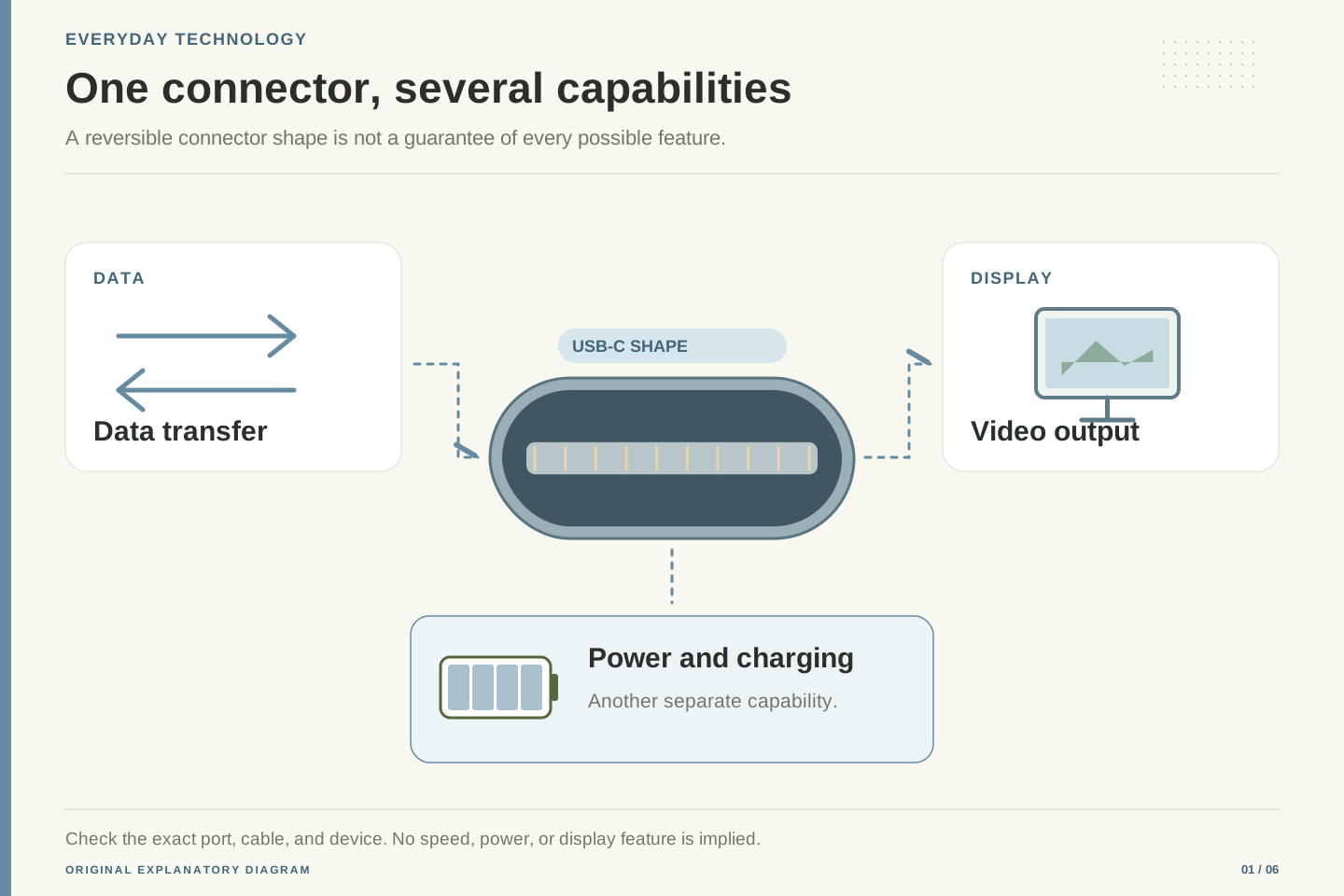
- USB-C describes a connector; data, power, and video capabilities require separate checks.
- Specify the exact task and verify every relevant component in the connection path.
- Keep advertised link rates separate from observed application performance.
- A charger’s maximum rating is not the power every device must consume.
- Use exact model documentation and a representative setup check before relying on a purchase.
A matching plug is only the beginning
A cable fits your laptop, your phone, and the small dock on your desk. That is convenient, but fitting does not tell you everything the connection can do. USB-C describes a connector system. It is not another name for USB4, a particular data speed, or USB Power Delivery. USB-IF explicitly separates these terms in its product-language guidance. [1]
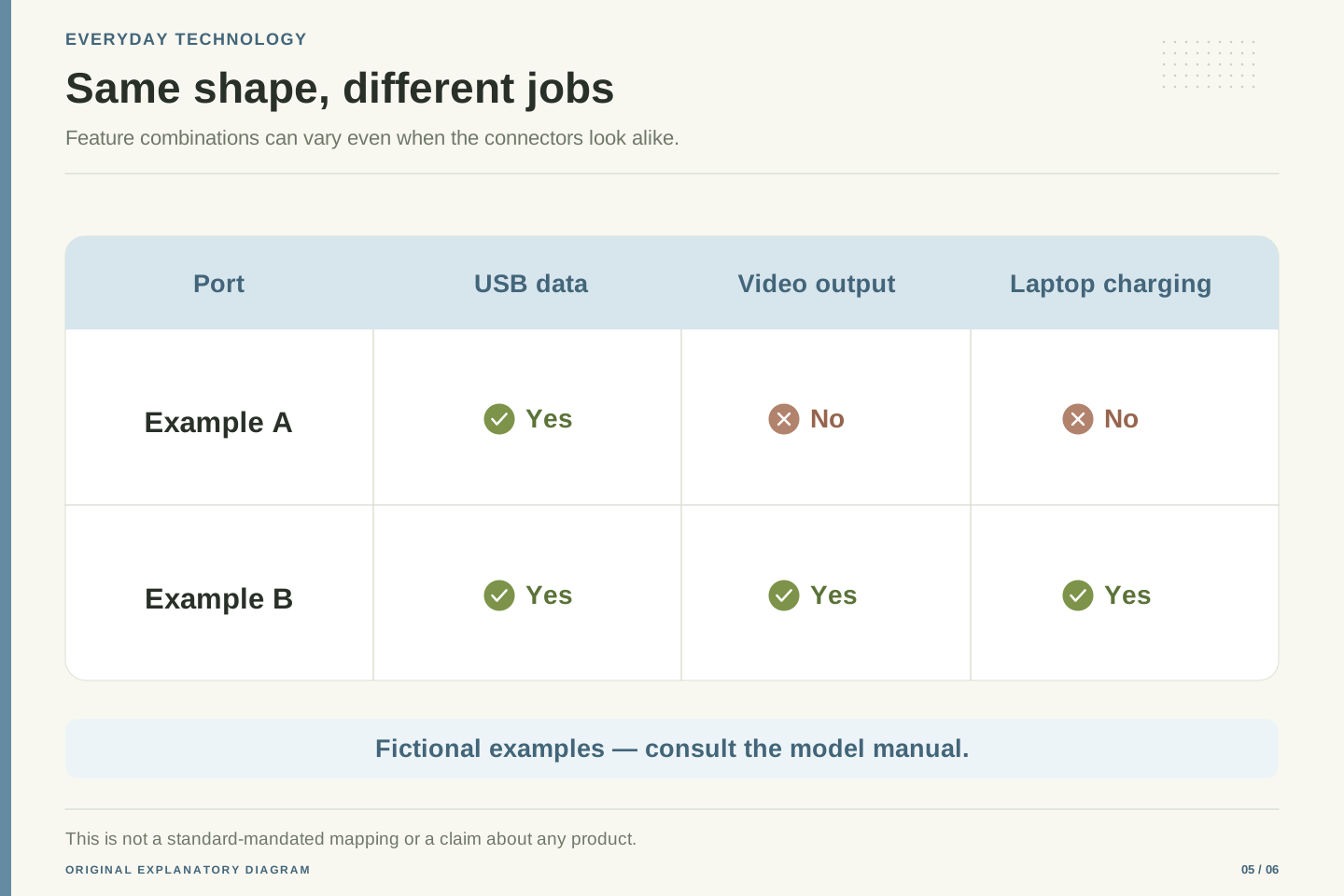
Imagine three doors with the same handle. One opens into a cupboard, one into a classroom, and one into a workshop. The handle tells you how to open the door; it does not describe everything behind it. A USB-C socket is similar. The device maker decides which supported functions are available through that particular socket. Another socket on the same computer may have different capabilities.
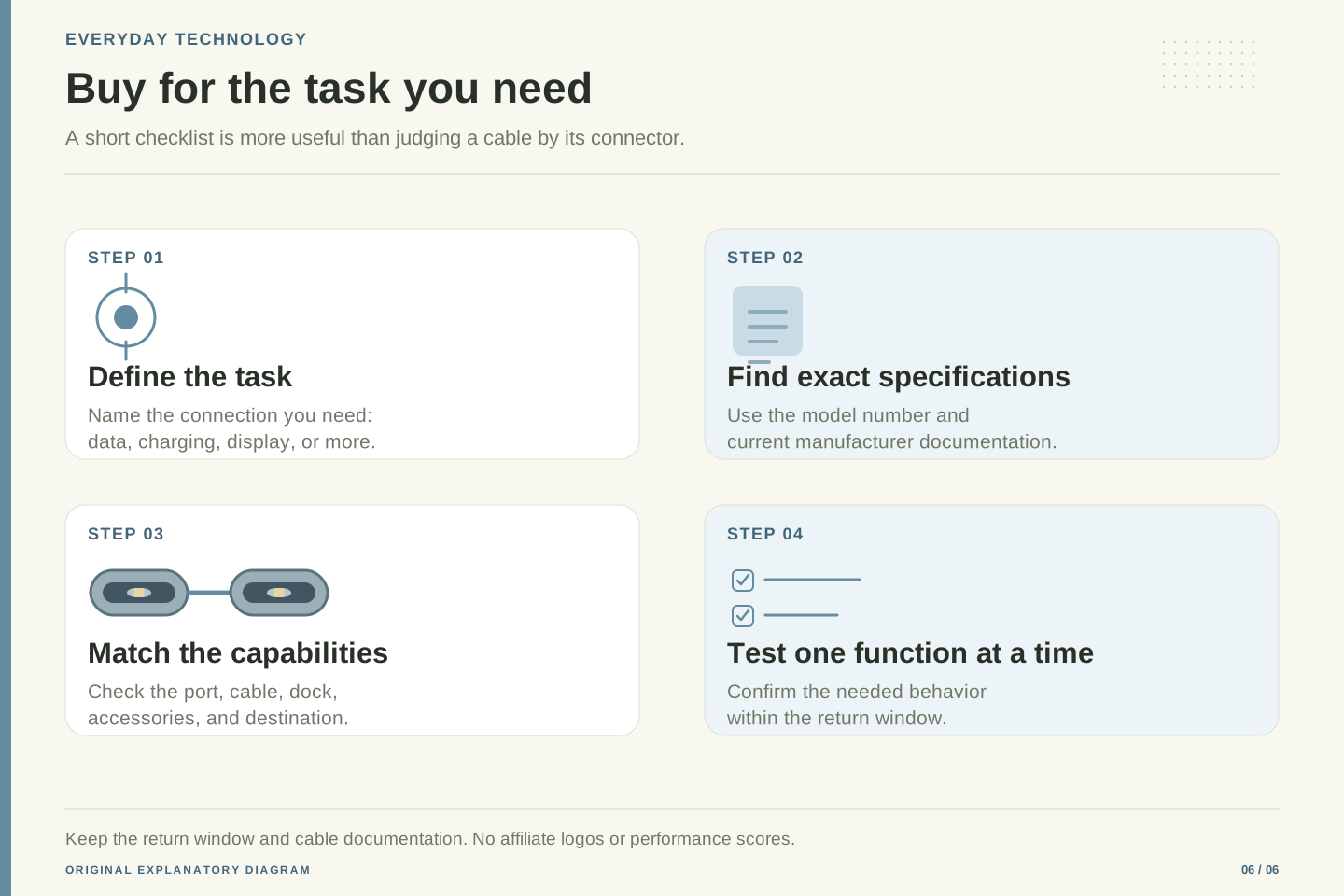
This distinction is useful because it changes the shopping question. Instead of asking whether a cable is USB-C, ask what job the complete connection must perform. Do you want to charge a phone, copy a large camera folder, run a monitor, or connect a desk full of equipment? Write down the job first. The plug shape belongs on the checklist, but it cannot complete the checklist by itself.
USB Type-C defines a connector and cable ecosystem; data protocols and power features are separate capabilities. USB-IF cautions against treating the connector name as a synonym for USB4, USB 3.2, or USB Power Delivery. A Type-C receptacle therefore does not by itself establish the host controller, available Alternate Modes, or charging profiles. [1]
For requirements work, model a port as a collection of supported functions rather than a single performance number. The relevant functions may include USB data, a display transport, power sourcing, power sinking, and interactions with a dock. Document capabilities at the exact port level. A machine-level specification can be insufficient if different receptacles connect to different controllers or support different feature sets.
A useful acceptance statement is observable: the designated notebook port must drive the intended display configuration while the intended storage device is connected and the notebook receives adequate power. This states a workload and its boundaries. A statement such as needs USB-C leaves those boundaries unspecified. The difference matters when buying equipment, diagnosing failures, or deciding whether a replacement cable is actually equivalent to the original one.
Describe the task before choosing the cable
USB-IF notes that a cable cannot add a capability that the connected devices lack. It also treats a cable’s data performance and power capability as separate information. A promising charging label is therefore not enough evidence that the cable meets a demanding file-transfer or display task. Read the complete specification, not just the largest number on the box. [3]
Consider a fictional student buying one cable for two jobs. At home, the cable connects a phone to a charger. At college, it connects a portable drive to a computer. The student should record both jobs, the exact devices, and any stated cable requirements. If the first job works, that does not establish that the second job will work at the desired speed. The two checks answer different questions.
You can make a useful shopping note in ordinary language: these are my devices; this is the port I will use; these are the functions I need at the same time. Keep the model numbers and links beside it. This small note is more useful than memorizing a list of impressive connector names. It also gives a seller a specific question to answer when the product listing is vague.
A cable has its own capability envelope. USB-IF’s cable guidance distinguishes supported power from the relevant data-rate designation and explains that cable compliance does not upgrade an endpoint. Treat the cable as one component in the compatibility assessment, not as proof of an end-to-end feature. [3]
Build a short requirements matrix with a row for each workload and columns for source device, selected port, cable, intermediate equipment, and destination. Record which document establishes each required capability. The matrix need not contain every optional feature in the standards. It should contain the features that can make the intended workflow succeed or fail. Missing evidence is a question to resolve, not an invitation to infer support from connector shape.
In a fictional studio, an editor might need a drive connection at one desk and a monitor connection at another. A cable purchased for both tasks needs evidence for both tasks. If a seller only states charging capability, the specification is incomplete for this requirement even if the cable is perfectly suitable for charging. This framing avoids confusing a legitimate narrow product with a defective product and makes procurement conversations much more precise.
Data speed is a chain, not a promise on one box
USB4 is designed to carry different kinds of traffic across a shared connection, and USB-IF describes operation according to mutually supported capabilities. A device label is therefore only one part of the story. The computer, connection, and equipment at the other end all matter. [6]
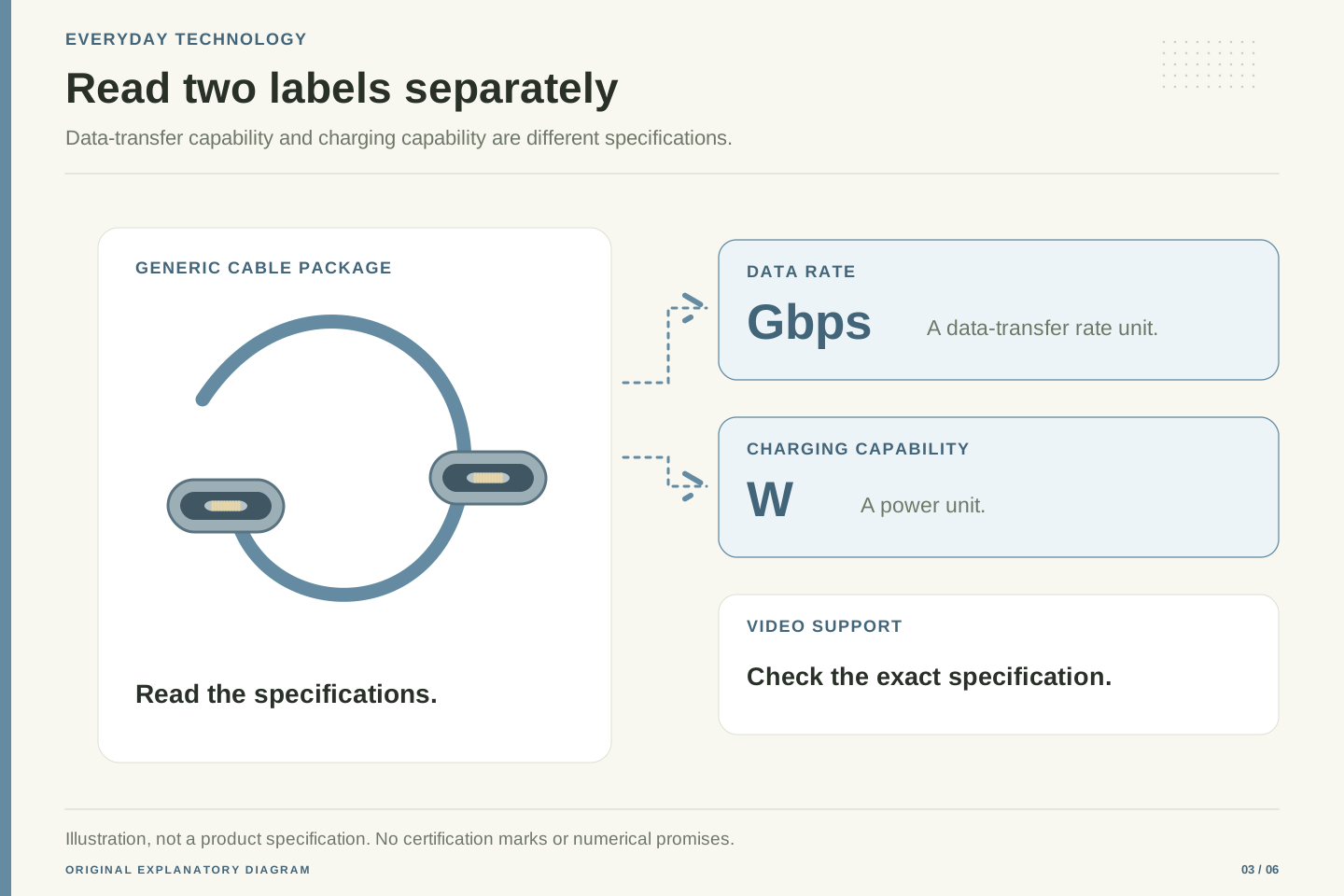
Picture a fictional delivery route with a wide road, a narrow bridge, and a warehouse that accepts one package at a time. Widening the road alone does not fix every delay. Copying files has a similar practical lesson: the connection is only part of the work. Reading from the source, writing to the destination, and handling the files also take time. An advertised connection rate should not be treated as a stopwatch result for your particular folder.
When comparing products, keep the units attached to every number. Gigabits per second and gigabytes per second are different units. A byte contains eight bits, but dividing a label by eight still does not predict a real transfer time because the transfer has other work to do. For your own acceptance check, copy representative files between the actual devices and record the conditions. Treat that as a local observation, not a universal benchmark.
USB4’s architecture allows multiple data and display protocols to share a high-speed link, with operation constrained by common capabilities. Link capacity should therefore be distinguished from the throughput of a particular application and from bandwidth remaining while other traffic is active. [6]
For a file-transfer workload, consider a sequence of stages: source media read, software processing, transport, destination buffering, and destination media write. The slowest stage can constrain the steady-state result; startup work and variable caching can also affect a short measurement. This is a performance model for reasoning, not a measured characterization of any device. It explains why a nominal link rate is an incomplete acceptance criterion for storage performance.
Keep bit rates and byte rates explicit in notes. The arithmetic conversion between bits and bytes is exact, while the mapping from a signaling label to useful application throughput depends on the system. A meaningful local comparison holds the source files, destination, selected ports, and background workload reasonably constant. Describe the result with those conditions. If the goal is a dependable editing workflow, successful operation with representative files is more informative than a claim that every transfer must reach a headline rate.
A higher charger rating is available capacity
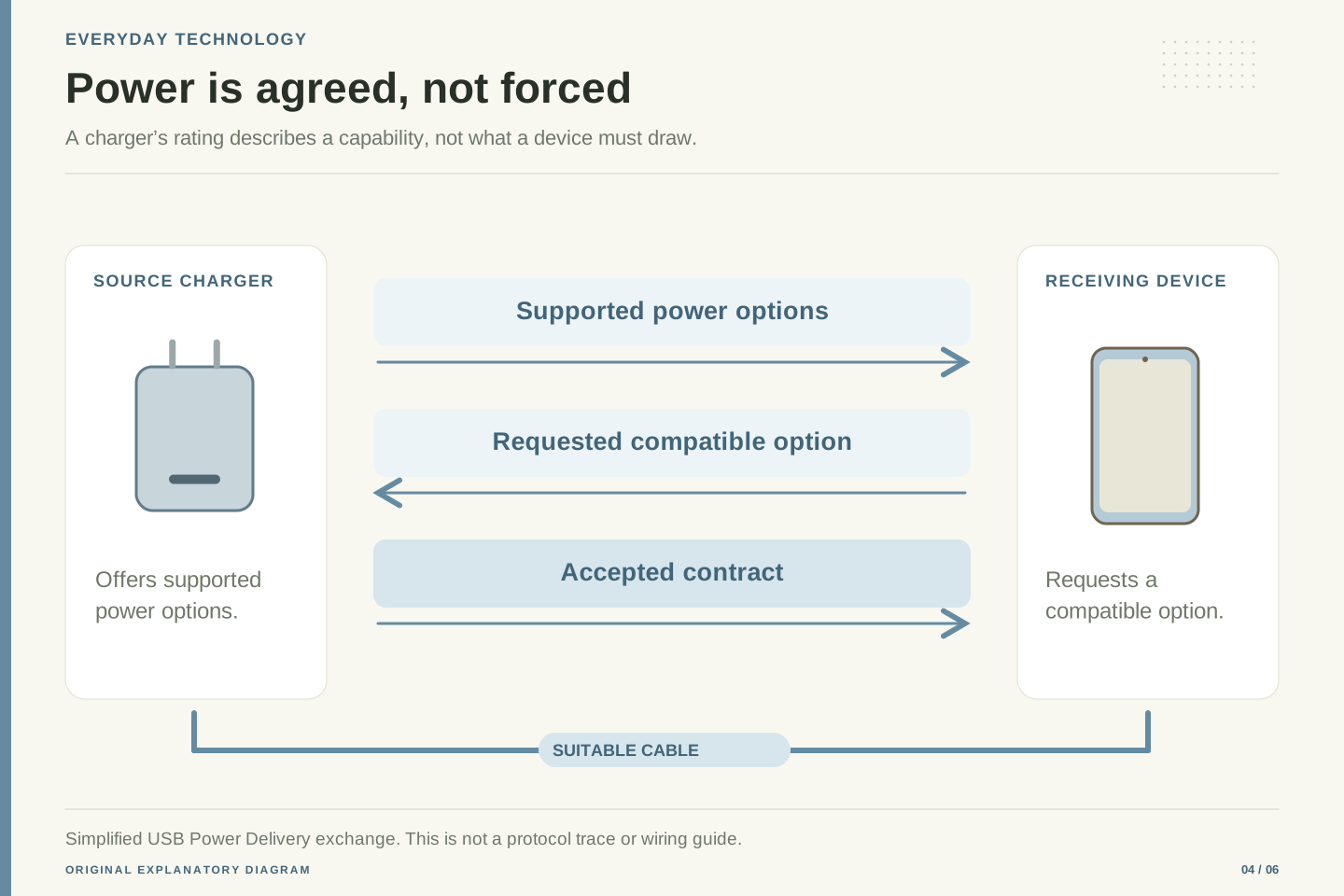
USB Power Delivery lets compatible equipment agree on an appropriate power arrangement. USB-IF describes a system in which devices can obtain the power they need, rather than every attached device receiving the charger’s largest advertised output. A power rating on the charger is a capability, not a command that the phone must consume that amount. [2]
Suppose a fictional desk charger is sold with several ports. Before buying it, look for the manufacturer’s explanation of using those ports together. A number printed prominently on the front may describe the product under particular conditions. Your useful question is more specific: what can this port provide when my other equipment is also connected? Keep this as a documentation check rather than assuming that every socket offers the same thing at every moment.
The receiving device and cable must also suit the task. A charging symbol tells you that some charging is happening; it does not prove the desired charging behavior under every workload. If a laptop is charging slowly while doing demanding work, check its own guidance and the exact charger configuration. Use compatible, undamaged equipment and normal manufacturer-supported connections. There is no reason to improvise electrical modifications to solve a specification mismatch.
In USB Power Delivery, a source and a sink negotiate compatible power behavior; the source’s maximum rating is not identical to the sink’s instantaneous draw. USB-IF also distinguishes power direction from the host/peripheral relationship for data. These are useful separations when assessing docks and bidirectional charging arrangements. [2]
Texas Instruments’ engineering guide discusses Type-C power roles, configuration-channel behavior, and Power Delivery negotiation as related but distinct parts of implementation. For a consumer compatibility review, the practical consequence is to verify the required power capabilities across the participating components instead of assuming that a mechanical connection establishes the desired contract. [5]
Write a power requirement around an operating scenario. A notebook at light load, the same notebook rendering a project, and a dock simultaneously supporting peripherals are different scenarios. Without device-specific evidence, do not equate a displayed charging icon with sufficient input for every scenario. Likewise, distinguish a charger’s total advertised output from its documented per-port behavior when multiple outputs are occupied. This is a reason to request a clear manufacturer power-allocation table, not a reason to estimate undocumented electrical behavior from a product photograph.
For a monitor, follow the entire video path
Video is another capability to check separately. VESA describes DisplayPort over USB-C using an Alternate Mode: a supported way of carrying a display signal through the connector. The familiar socket shape alone does not establish that a particular computer port offers that display path. [4]
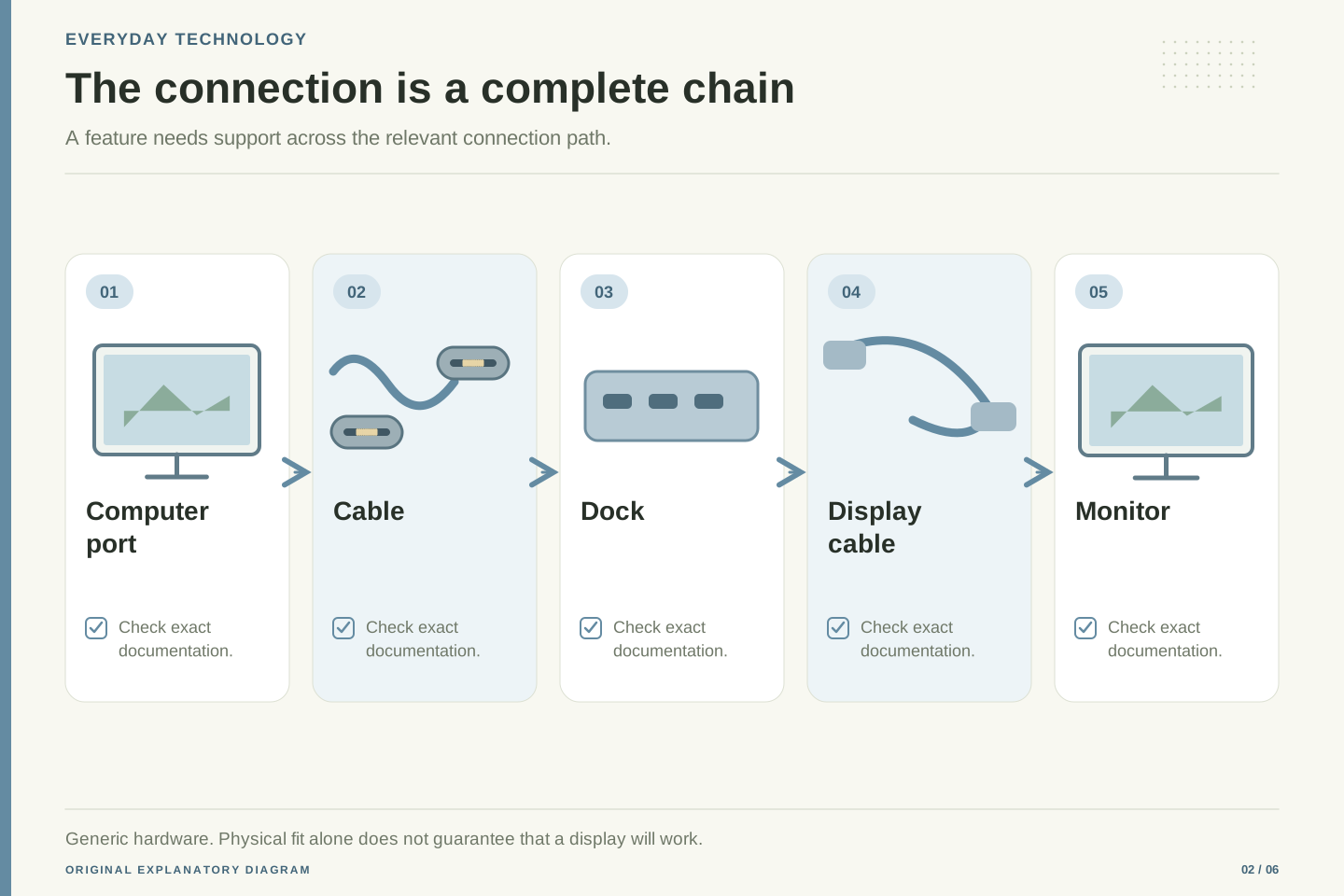
Imagine connecting a fictional notebook to a monitor through a dock. There are several documents to match: the notebook’s selected port, the computer-to-dock cable, the dock’s display output, the display cable, and the monitor input. Write the desired resolution and refresh rate beside that chain. If the requirement involves two monitors, write that down explicitly. A claim about one display does not automatically answer a question about two.
If the picture does not appear, avoid immediately buying a more expensive cable at random. Check the monitor’s selected input and the manufacturer’s connection instructions. Then establish whether the computer port supports the kind of video the adapter or dock expects. A passive shape-changing adapter cannot create a missing capability. Keeping the intended signal path clear makes it easier to distinguish an unsupported setup from a damaged component or a simple input-selection mistake.
DisplayPort Alternate Mode is a defined display transport associated with compatible USB-C implementations. VESA’s overview establishes the availability of that mechanism; it does not establish support on every Type-C receptacle. Other product descriptions may refer to tunneled display traffic, so identify the actual transport expected by the chosen dock or adapter. [4]
Represent the video path explicitly: graphics-capable source, selected external port, upstream cable, intermediary, downstream link, and display input. At each boundary, require support for the intended mode. Resolution alone is an incomplete requirement; the refresh rate and simultaneous-display arrangement can materially change what must be supported. Consult the exact manufacturer combination rather than composing a capability claim from unrelated headline specifications.
A disciplined investigation separates discovery from image quality. First determine whether the expected display path is supported and recognized. Then assess the desired mode and behavior alongside the rest of the workload. A desktop appearing at one configuration does not validate every other configuration. Conversely, a blank display is not proof that the connector standard is unreliable. It is an observation that needs localization within a chain containing several independently specified components and user-selectable inputs.
A dock is a small system, not just more sockets
A dock is attractive because one connection can make a desk feel tidy. The useful question is what the dock supports with your computer and your planned devices connected. Start with a small drawing: notebook, dock, display, storage, keyboard, and charger. Mark which item provides power and which cable connects each pair.
In a fictional home office, everything works during a quick monitor test. Later, the owner adds external storage and begins a large copy while using other accessories. That is a different workload from the original test. The point is not that something must fail. The point is that a simple test of one function cannot establish how the complete desk will behave. Keep the test close to the way the setup will actually be used.
Write down what success means before comparing docks. Perhaps the priority is a reliable meeting setup, easy connection, and adequate charging, rather than the largest collection of ports. Check the dock maker’s supported-computer notes, required software where applicable, and restrictions on simultaneous use. Save the relevant product page or manual reference. This gives you a practical record for later troubleshooting when a computer, operating system, or accessory changes.
Treat a dock as an integration boundary. It may combine transport, display handling, peripheral connectivity, and power distribution, so validation should cover the intended combination of functions. A socket count is a physical inventory, not a workload specification. The same inventory can meet one user’s requirements and be inadequate for another user’s requirements without either user’s observation being contradictory.
Construct a small workload matrix: display only, display plus storage, and the representative full desk. Record the selected host port and all relevant model identifiers. The purpose is to localize a change in behavior, not to produce an exhaustive benchmark suite. If a problem appears only with the full desk, the simplified cases provide evidence about which interactions deserve attention. They do not automatically identify the faulty component.
Keep vendor constraints alongside the matrix: supported host configurations, any required drivers or utilities, display combinations, and documented power allocation. A proposed replacement should satisfy the same observable requirements. This is especially useful when a product listing changes or a retailer offers a different revision under a similar name. A short evidence-backed configuration record is easier to maintain than an assumption that all docks with familiar-looking ports are interchangeable.
Use standards and certification as evidence
Thunderbolt products use the USB-C connector shape while adding requirements defined for the relevant Thunderbolt generation. Intel’s overview describes capabilities and certification within that ecosystem. This does not mean that every USB-C connection is Thunderbolt, or that all generations have identical requirements. Check the particular product and generation. [8]
Certification marks can help when they are legitimate and refer to the exact product. USB-IF explains that its certified logos are licensed for qualifying tested products. A random graphic on a marketplace image is less useful than a traceable manufacturer specification and a matching model identity. The mark should support your research, not replace it. [9]
You do not need to buy every possible feature. A simple charging task may have a much smaller requirement than a desk with displays and fast storage. Pay for documented capabilities that serve your task, and leave room for future needs only when you can name them. Keeping the packaging or order record can also help identify a cable later, when several visually similar cables have accumulated in a drawer.
Thunderbolt is a useful example of why connector identity and feature guarantees are different layers. Intel describes generation-specific requirements and certification over the USB-C physical connector. When a requirement depends on Thunderbolt behavior, identify the relevant generation and the specific certified implementation instead of promoting connector compatibility into a protocol guarantee. [8]
USB-IF’s logo program similarly links authorized certification marks to qualifying products. Evidence should connect the displayed mark, manufacturer, and exact product identity. Certification answers defined conformance questions; it does not establish every aspect of a user’s assembled workload. Those are complementary checks with different scopes. [9]
A purchasing specification should therefore separate mandatory features from optional expansion. For example, a fictional team might require one known display configuration and one storage workflow today, while merely considering a second display later. Documenting that distinction prevents an untested future scenario from silently becoming an acceptance condition. It also makes budget decisions more rational: a stronger guarantee can be valuable when it covers a real requirement, but a larger collection of labels is not itself an operational outcome.
Troubleshoot one question at a time
Microsoft’s USB-C troubleshooting guidance distinguishes several causes of charging problems, including the selected port, charger compatibility, available power, and cable requirements. This is a useful reminder that an unhelpful result does not have one automatic explanation. Start with the device’s own documentation and the message it displays. [7]
Next, name the symptom precisely. Does the phone fail to charge, does a drive fail to appear, or does a monitor remain blank? Keep those as separate questions. Photograph or write down an error message before changing the setup. Compare the exact port and cable with the manufacturer’s recommended arrangement. A record of what happened is more valuable than repeatedly reconnecting a collection of different accessories without notes.
Where you have compatible known-working equipment, change one component at a time using normal supported connections. If a simpler configuration works, add items back deliberately. Do not treat a successful charging test as a display test, and do not treat a working display as a storage-speed test. Stop using visibly damaged equipment and obtain appropriate support. The aim is to identify a mismatch or fault, not to experiment with connectors, wiring, or unsupported electrical work.
Microsoft’s troubleshooting documentation identifies compatibility, charging-port choice, cable requirements, and available power as separate factors. Its examples support a symptom-driven investigation rather than an inference that every slow-charge warning means a failed charger. Product-specific guidance should control the actual corrective steps. [7]
Begin with a reproducible observation: selected host port, connected components, application workload, and visible error. Separate functional classes such as power, enumeration, display detection, and throughput. Choose the smallest supported configuration that can answer the current question. A reduced configuration is useful because it changes fewer assumptions, not because success there proves that a larger configuration must work.
Use substitutions only when the substituted component has the relevant documented capability. A cable known to charge another device is not automatically a known-good cable for the present display test. Record each change and its result before making another change. If the observation follows a component across compatible configurations, that is evidence worth giving the manufacturer; it still needs interpretation within the supported conditions. Avoid improvised electrical interventions and follow the manufacturer’s service guidance for physical damage or persistent faults.
Keep a short connection record
The most useful result of this guide is a small record you can reuse. Give the setup a name, such as home desk or camera backup. List the exact computer port, cable model, dock if present, and connected devices. Add links to the specifications that answer the data, power, and video questions relevant to that setup.
For a fictional camera-backup kit, the success condition might be simple: the intended camera files copy to the intended drive through the intended computer without errors. For a desk, it might include a particular monitor arrangement and ordinary daily charging. These are different acceptance checks, so they deserve different records. You can update the record when replacing a device instead of starting the research again from the connector shape.
After buying equipment, check the intended task while the seller’s return process is still available to you. Keep your observations modest and specific. Works with this setup under these conditions is a useful statement; works with everything is usually an unsupported promise. Once the connection is documented and doing its job, there is no need to keep chasing a bigger label. The right capability is the capability your actual workflow requires.
End the evaluation with a configuration record that can survive a hardware change. Include exact model identifiers, selected ports, cable identity, documentation references, and the workload that was accepted. Keep facts separate from assumptions: documented capability, observed behavior, and untested future use are three different entries. This makes a later regression easier to reason about.
For an original hypothetical example, a small editorial team could maintain one record for an image-ingest workstation and another for a meeting-room display. The first emphasizes representative file transfer; the second emphasizes predictable display and charging behavior. Both may use USB-C, but their acceptance evidence is different. Reusing the label as a substitute for that evidence would hide the distinction that matters to the people using the equipment.
When a component changes, revisit the affected requirements instead of assuming that a newer or more expensive item is equivalent in every relevant respect. Verify within normal supported operation and retain the purchase documentation. This approach scales from a single personal cable to a small office: specify the job, identify the complete path, check the evidence, and observe the intended workload. It turns a confusing connector conversation into a manageable compatibility decision without requiring every reader to become a standards engineer.
Sources & further reading
Explore the references behind this guide. External pages may change after our review.
- USB Type-C language and product packaging guidelinesUSB Implementers Forum · Accessed 6 Nov 2026
- USB Power DeliveryUSB Implementers Forum · Accessed 6 Nov 2026
- USB Type-C cables and connectorsUSB Implementers Forum · Accessed 6 Nov 2026
- DisplayPort over USB-CVideo Electronics Standards Association · Accessed 6 Nov 2026
- An Engineer’s Guide to USB Type-CTexas Instruments · Accessed 6 Nov 2026
- USB4 architectureUSB Implementers Forum · Accessed 6 Nov 2026
- Fix USB-C problems in WindowsMicrosoft · Accessed 6 Nov 2026
- Thunderbolt technology overviewIntel · Accessed 6 Nov 2026
- USB-IF logo license and certificationUSB Implementers Forum · Accessed 6 Nov 2026
Article updated 6 Nov 2026.
Found something we should revisit?
Good explanations get better with thoughtful feedback.